Updating CenterScape on Linux
After backing up the database CenterScape uses the new tar.gz for CenterScape should be copied to the application server. The /tmp directory is used to temporarily store the install file in the example here of updating CenterScape from version 1.9 to version 1.10.
- First go to the directory for the install root of CenterScape. In this case CenterScape is installed under /opt/rfcode/centerscape so change the directory to /opt/rfcode/centerscape.
cd /opt/rfcode/centerscape
- Stop the CenterScape service
./rfccenterscape stop
- Change directory to the parent directory
cd ..
- Rename the current directory with a .old extension
mv centerscape centerscape.old
- Create a new CenterScape directory
mkdir centerscape
- Change Directory into centerscape
cd centerscape
- extract the CenterScape installer
tar -xvf /tmp/rfcode-centerscape-1.10_AS_20250128_141508_P.tar.gz
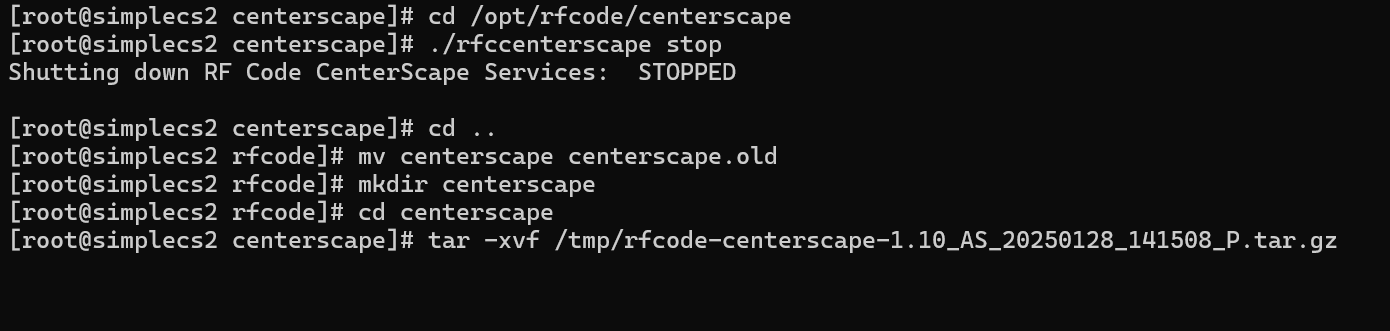
The below image shows the entire process flow up to the extract
- After the extraction is complete edit the rfccenterscape startup script using vi or any editor.
vi rfccenterscape
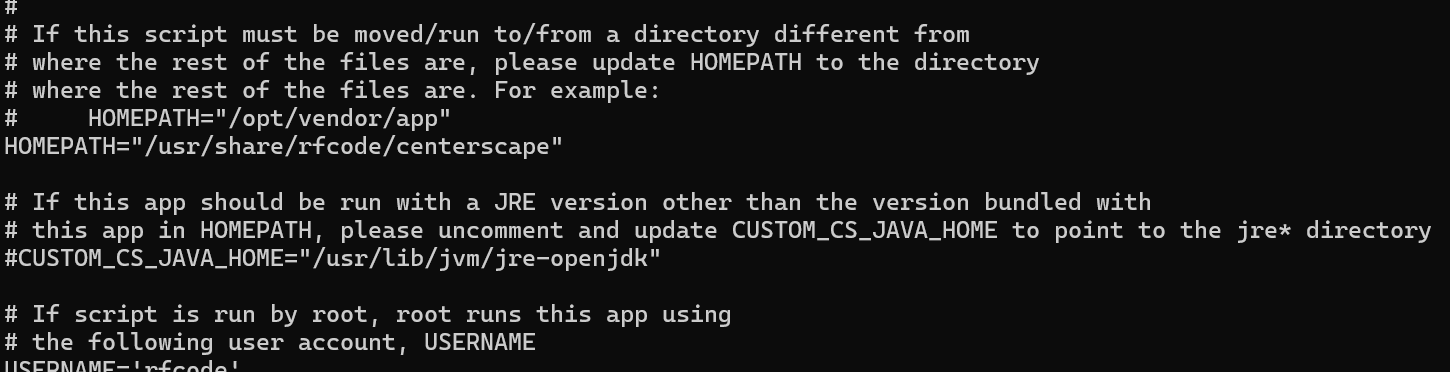
- Set the HOMEPATH to the directory CenterScape is installed at. In this case homepath would be HOMEPATH="/opt/rfcode/centerscape". Below shows the default path for homepath that must be edited in the rfccenterscape file.
- Make the rfccenterscape script executable
chmod u+x rfccenterscape
- change directory to the conf directory.
cd conf
- From the conf directory copy the system.properties and keystore file to the conf directory. This will move the database and app configuration as well as the encryption certificates to the new version. For CenterScape versions (12.0+) that support availability the server.uuid should be copied as well.
cp ../../centerscape.old/conf/system.properites .
cp ../../centerscape.old/conf/keystore .
cp ../../centerscape.old/conf/server.uuid .
- Change back to the parent directory
cd ..
- Change ownership of the install to the rfcode user and rfcode group unless another account is used.
chown -R rfcode:rfcode *

- start CenterScape
./rfccenterscape start
-
The server should now be at the new version of CenterScape and the web UI should be available after initialization.
Note: In some cases migration can require more time to complete than the 5 minutes that the service watchdog allows. If that is the case the service should be stopped and line startup.timeout=3600 should be added to the system.properties file and the service started. Once the upgrade is finished the startup.timeout should be removed from system.properties.